
Introduction
Instagram Reels have become the most powerful way to grow your brand in 2026. Whether you are a business owner, a content creator, or a digital marketer, short-form videos are the key to reaching new audiences. Here is the truth: a raw video will not go viral. What makes a Reel stand out is professional editing.
This is where CapCut comes in. CapCut is a powerful video editing app that gives you Hollywood-level editing tools right on your phone or computer. In this CapCut Reels tutorial, I will walk you through the steps to create scroll-stopping Reels that get views, likes, and shares.
Why CapCut is the Best Tool for Instagram Reels
Before we dive into the tutorial, let me explain why CapCut is the top choice for Reels editing:
- Completely Free: All the essential features are available at zero cost.
- Trending Templates: You can use trending templates with one click.
- Auto Captions: It automatically generates subtitles for your videos, which boosts watch time.
- Smooth Transitions: CapCut has the smoothest transition effects compared to any other mobile editor.
Step 1: Understanding the CapCut Interface
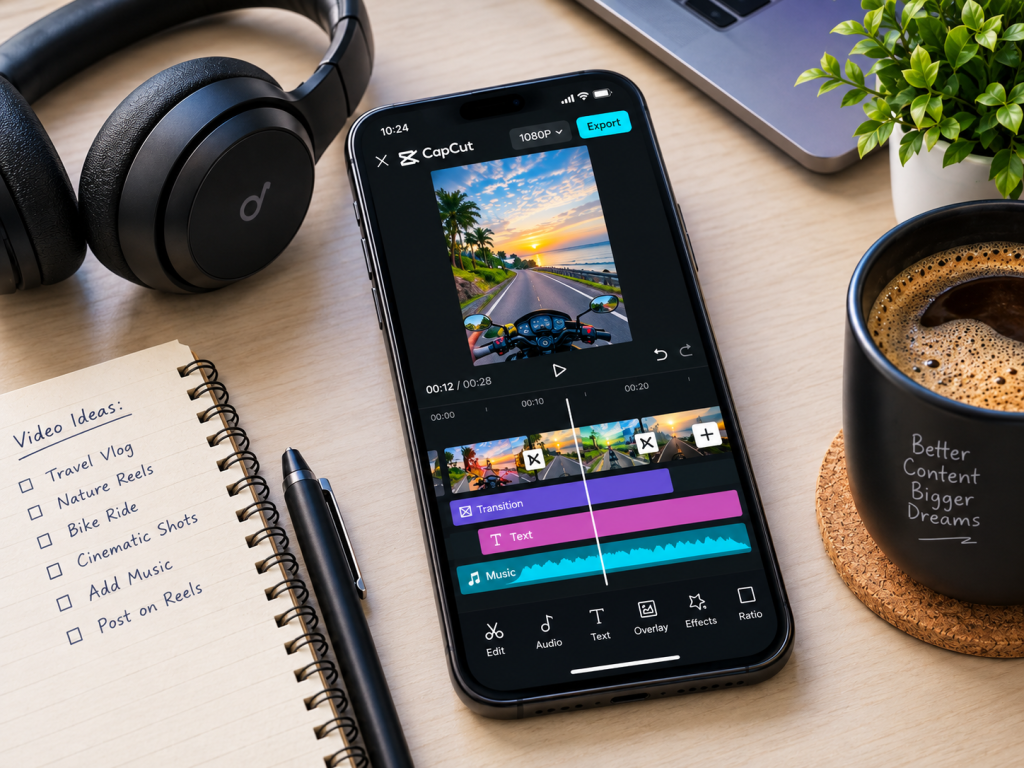
When you open CapCut and create a new project, you will see a few key sections:
- Preview Window: The top area where you see your video playing.
- Timeline: The bottom area where your video clips, audio, and text are arranged.
- Toolbar: The middle menu with options like Split, Speed, Volume, Text, and Effects.
- Adjustment Menu: The bottom menu that changes based on what you select on the timeline.
Take a few minutes to explore these sections before you start editing.
Step 2: Importing and Arranging Your Clips
Tap on “New Project” and select the video clips you want to use. A pro tip for Reels: keep your clips short and fast-paced. Instagram’s algorithm favors videos that keep viewers watching until the end.
- Arrange your best clips at the beginning (the first 3 seconds are crucial).
- Use the “Split” tool to cut out boring parts.
- Keep the total video length between 15 to 30 seconds for maximum engagement.
Step 3: Mastering Transitions and Sound Sync
This is where the magic happens. Transitions and sound sync are what separate an amateur video from a professional one.
For Transitions:
- Tap on the small white square between two clips on the timeline.
- Choose from options like “Zoom,” “Glitch,” or “Whip Pan.”
- Do not overuse transitions. Use them only when the beat drops or the scene changes dramatically.
For Sound Sync:
- Import a trending audio track from Instagram or CapCut’s audio library.
- Tap on the audio track and select “Beat” to automatically detect the beat markers.
- Now align your video cuts with those beat markers. This creates a satisfying, rhythmic feel that keeps viewers hooked.
Step 4: Adding Text, Captions, and Effects
Most people watch Reels without sound. So, adding text and captions is essential.
- Use the “Text” tool to add a strong hook at the beginning (e.g., “Stop scrolling! You need to see this”).
- Use the “Auto Captions” feature to generate subtitles automatically. This increases watch time significantly.
- Add subtle effects like “Retro Film” or “VHS” for a stylish look. Keep it minimal so it does not distract from the main content.
Step 5: 3 Tips to Make Your Reel Go Viral
Now that your Reel is edited, here are three tips that actually make it go viral:
1. Hook in the First 3 Seconds: Your video must grab attention instantly. Start with a question, a bold statement, or a shocking visual.
2. Use Trending Audio: Instagram pushes Reels that use trending music. Always check the “Trending” section before you start editing.
3. Post at the Right Time: The best time to post Reels is between 6 PM to 9 PM (local time), when most people are scrolling.
Conclusion
Creating viral Instagram Reels is not about luck; it is about skill and consistency. With CapCut, you have all the tools you need to edit like a pro. Follow this CapCut Reels tutorial, practice regularly, and watch your engagement grow.
If you need professional video editing for your brand’s Reels, feel free to reach out. I specialize in creating high-retention Reels using CapCut and Premiere Pro.