
Introduction
Website speed is one of the most important factors for online success in 2026. If your WordPress website takes more than 3 seconds to load, you are losing visitors, customers, and Google rankings. Research shows that a 1-second delay in page load time can reduce conversions by up to 7 percent.
The good news is that WordPress speed optimization is not complicated. With the right tools and techniques, you can make your website load in under 2 seconds. In this step-by-step guide, I will show you how to speed up your WordPress website.
Why Website Speed Matters for Your Business
Before we dive into the steps, let me explain why speed matters so much:
- Google Ranking: Google uses page speed as a ranking factor. Slow websites rank lower in search results.
- User Experience: Visitors leave slow websites immediately. A fast site keeps them engaged.
- Conversions: Fast websites convert better. Amazon found that every 100 milliseconds of load time costs them 1 percent in sales.
- Mobile Users: Over 60 percent of web traffic comes from mobile devices, often on slower connections.
Step 1: Choose a Fast Hosting Provider
Your hosting is the foundation of your website speed. No amount of optimization can fix a slow server.
- Choose a hosting provider that uses LiteSpeed servers or NVMe SSD storage.
- Avoid cheap shared hosting with overloaded servers.
- Consider managed WordPress hosting for better performance.
Step 2: Install a Caching Plugin (LiteSpeed Cache)
Caching is the most effective way to speed up WordPress. It stores a static version of your pages so they load instantly for visitors.
- Install the LiteSpeed Cache plugin (it is free and powerful).
- Enable Public Cache and Private Cache.
- Turn on Browser Cache for returning visitors.
- Enable CSS/JS Minification and Combination to reduce file sizes.
- Use Critical CSS to load above-the-fold content faster.
Step 3: Optimize Your Images
Images are often the biggest cause of slow websites. Here is how to fix that:
- Compress Images: Use tools like TinyPNG or ShortPixel to reduce file sizes by up to 80 percent without losing quality.
- Use WebP Format: Convert your JPG and PNG images to WebP, which is 30 percent smaller.
- Enable Lazy Loading: Images below the fold should only load when the user scrolls down.
- Set Correct Dimensions: Do not upload a 4000px image if it will only display at 800px.
Step 4: Clean Up Your Database
Over time, your WordPress database collects junk data like post revisions, spam comments, and expired transients. This slows down your site.
- Delete old post revisions (keep only the last 3 to 5).
- Remove spam and trashed comments.
- Delete unused plugins and themes.
- Use a plugin like WP-Sweep or Advanced Database Cleaner.
Step 5: Reduce Plugin Bloat
Every plugin you install adds code to your website. Too many plugins equal slow speed.
- Deactivate and delete plugins you no longer use.
- Replace heavy plugins with lighter alternatives.
- Avoid plugins that load scripts on every page (like sliders that load sitewide).
Step 6: Use a Content Delivery Network (CDN)
A CDN stores copies of your website on servers around the world. When a visitor from the USA visits your site hosted in Bangladesh, the CDN serves the content from a nearby server.
- Use free CDNs like Cloudflare.
- It also provides security features like DDoS protection and SSL.
Step 7: Optimize Your Theme
Your theme affects speed more than you think.
- Use lightweight themes like Astra, GeneratePress, or Kadence.
- Avoid bloated multipurpose themes with dozens of features you do not use.
- Disable unused theme features.
How to Test Your Website Speed
After applying these steps, test your website speed using:
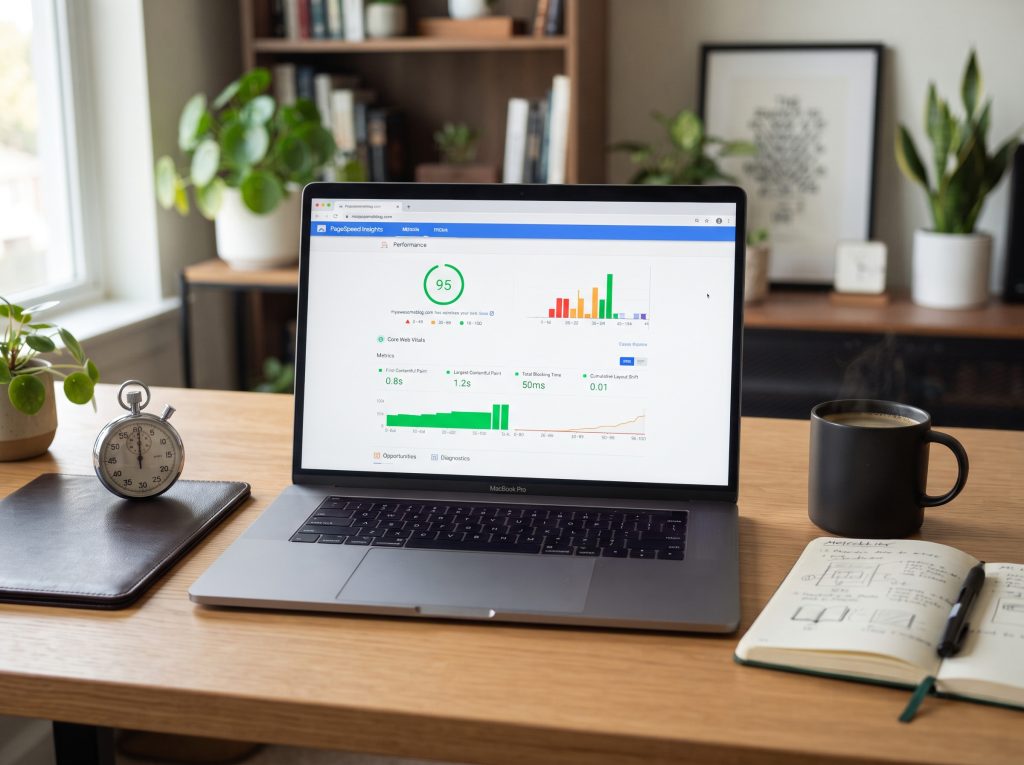
- Google PageSpeed Insights: Gives you a score out of 100.
- GTmetrix: Shows detailed load time analysis.
- Pingdom: Tests from multiple locations.
Aim for a PageSpeed score of 90+ and a load time under 2 seconds.
Conclusion
WordPress speed optimization is not a one-time task—it is an ongoing process. By following the steps above, you can significantly improve your website’s speed, Google rankings, and conversions.
If you need professional help speeding up your WordPress website, feel free to reach out. I specialize in WordPress speed optimization using LiteSpeed Cache, image optimization, and database cleanup.